Your first invitation,
done in a minute.
If you have a time and a place, that's all you need.
"What time again?""Whose name is the booking under?""Send the place again."
Plan details were always scattered somewhere in the chat.
Put it all on one page,
and no one asks again.
Time, place, map, and who is coming, all on the same screen.
We hang out all the time,
so why send a card?
Group chats can lock in plans too. And those plans scatter just as quickly.
But one card, and the same gathering feels different.
Your friend's first impression shifts, and the gathering already feels like one before it begins.
Your friend doesn't need the app.
That's fine.
A single card arrives in their chat. Time, place, map, and replies, all in the mobile web. No app needed.
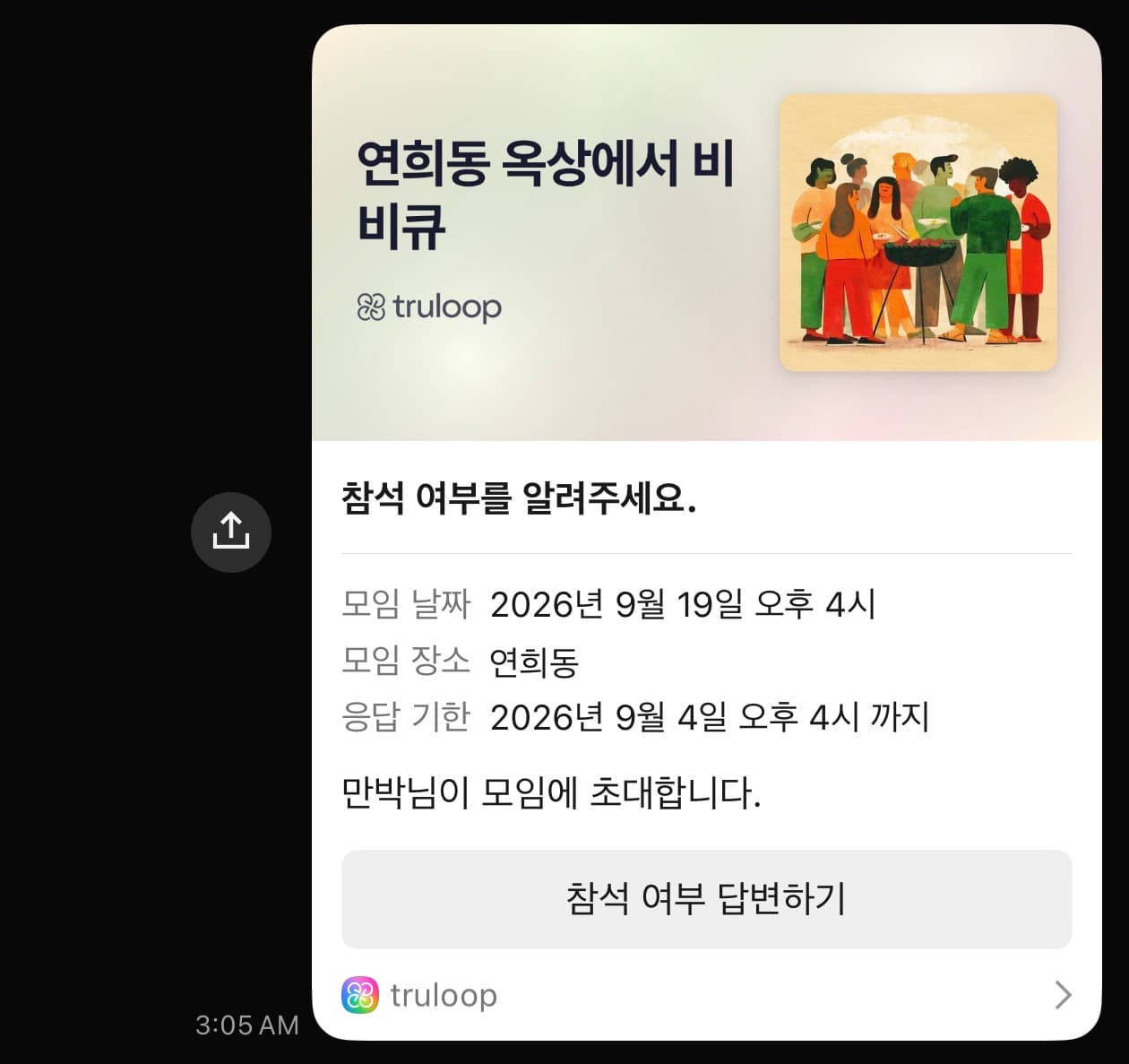
One minute to make. That is all.
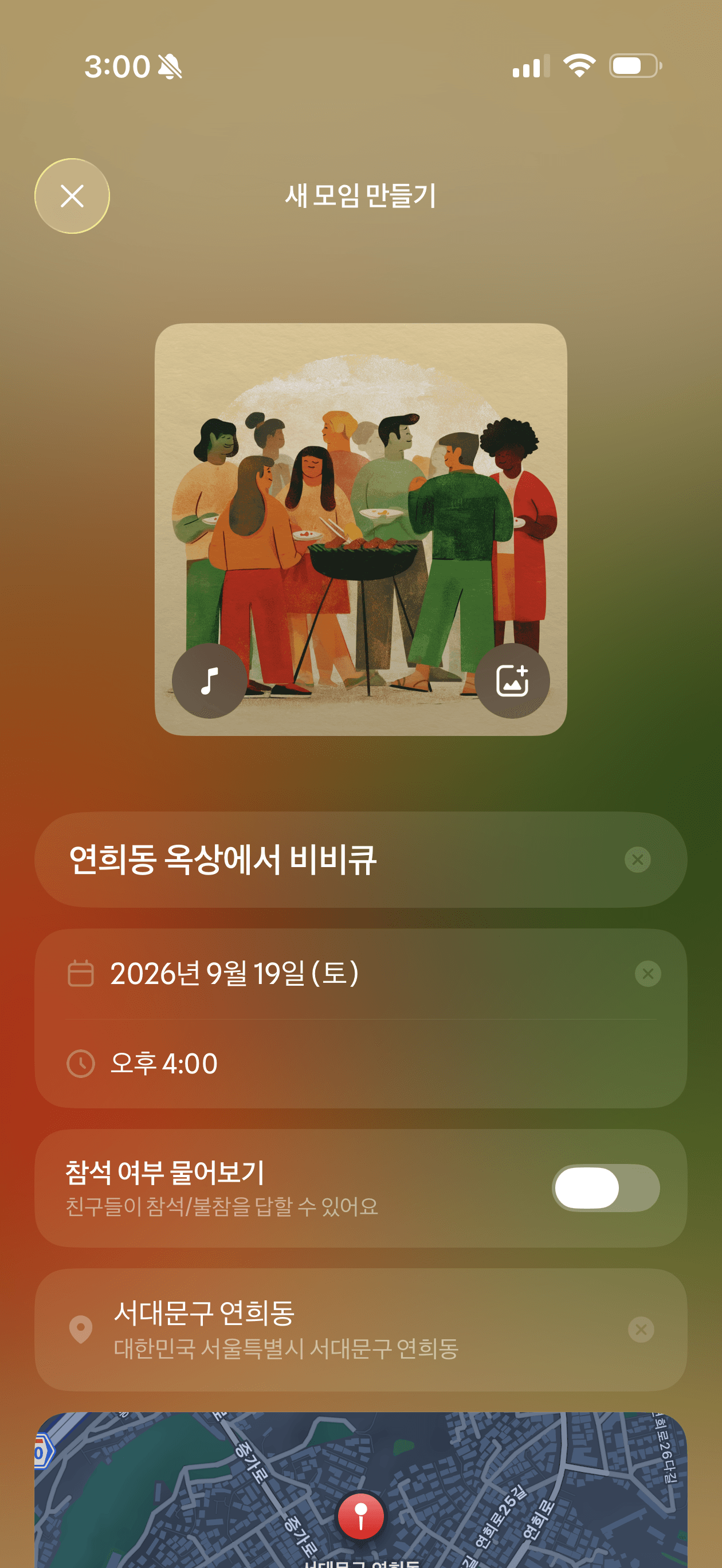
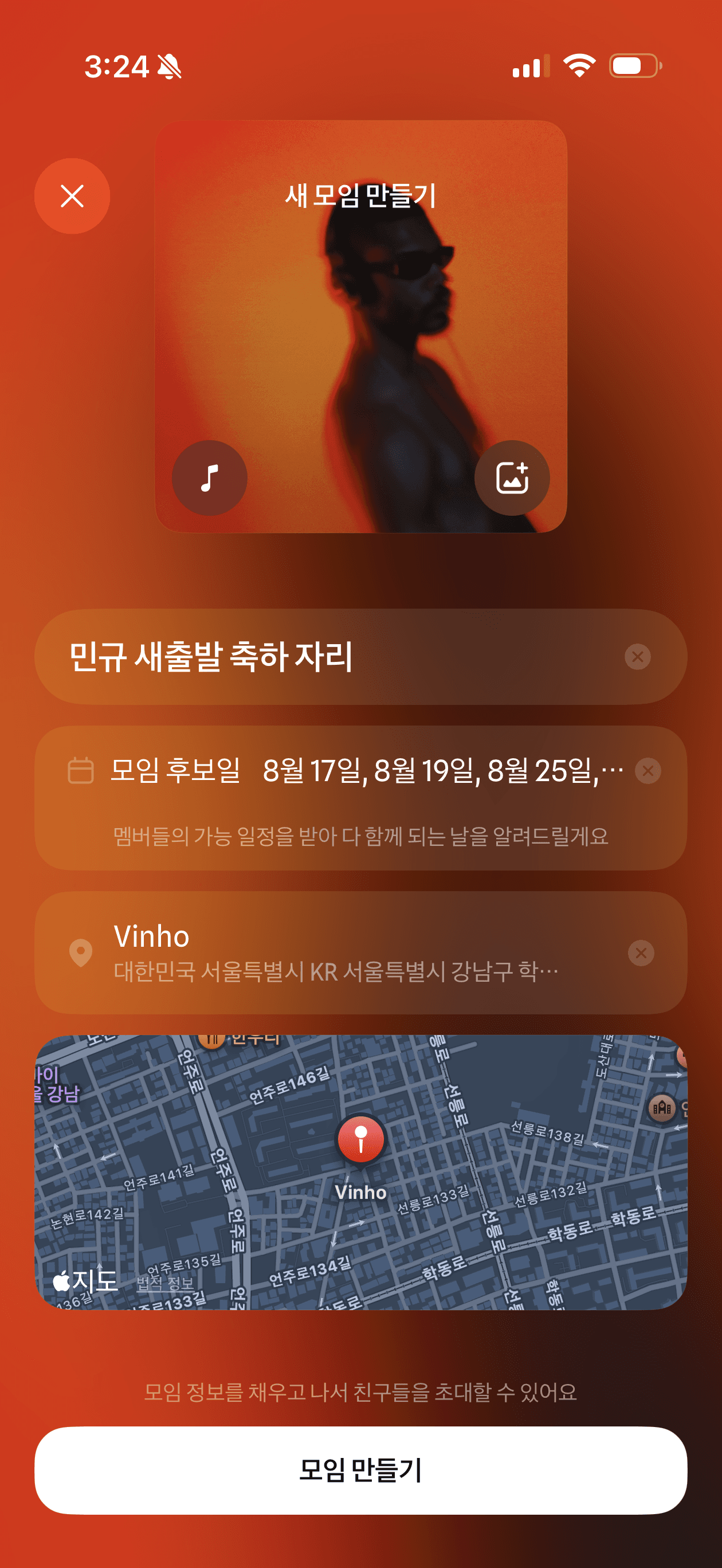
Tap "Create invitation."
Title, time, place. Just fill in what you already know.
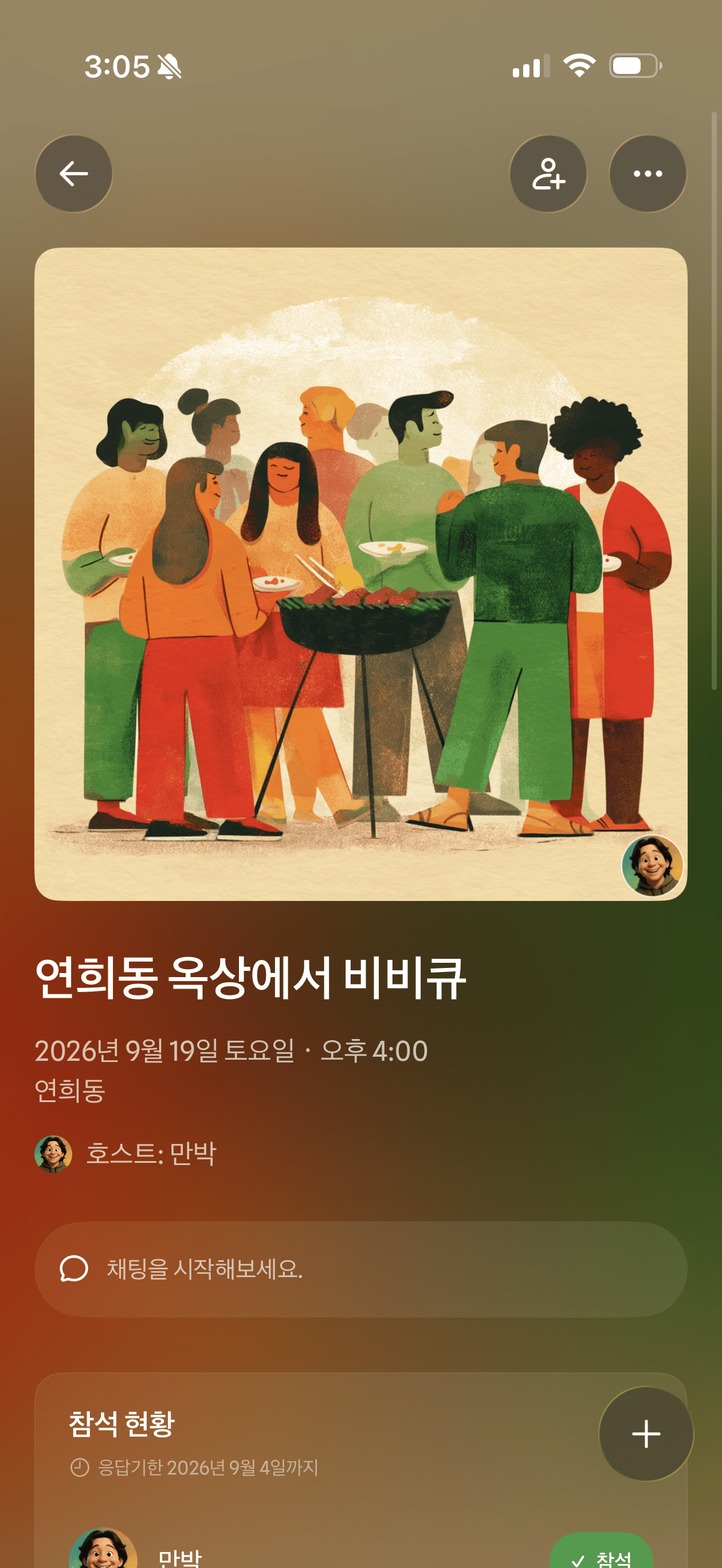
Tap "Send invitation link."
Your invitation is ready. Time to send it to your friends.
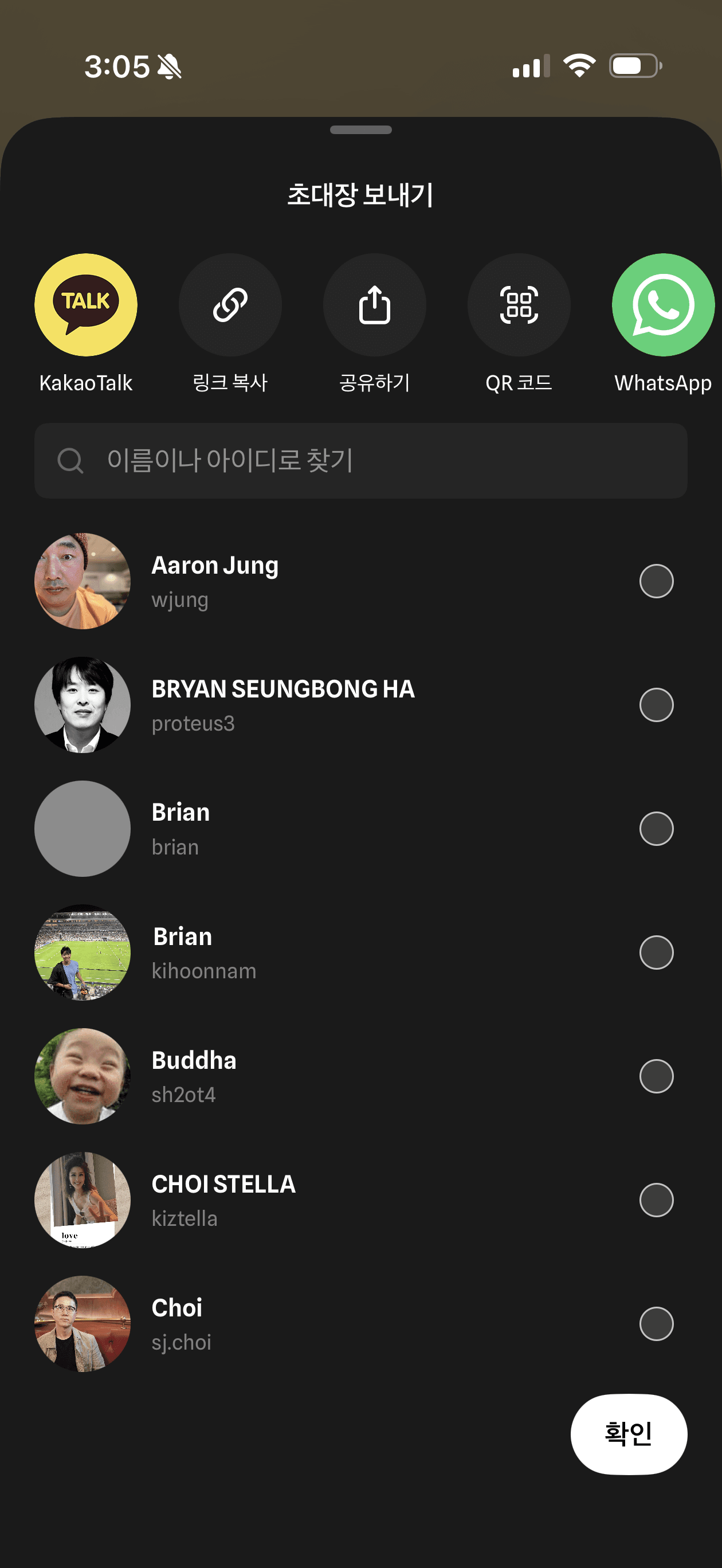
Share it in your chat.
Send it straight to a friend, or drop it in a group chat. No need to start a new room.
Done.
Your friends just tap the card again, and they never have to ask for the details.
Press and hold a cover you like,
and see how it will feel.
Even the same plan turns into a different occasion with the right cover.

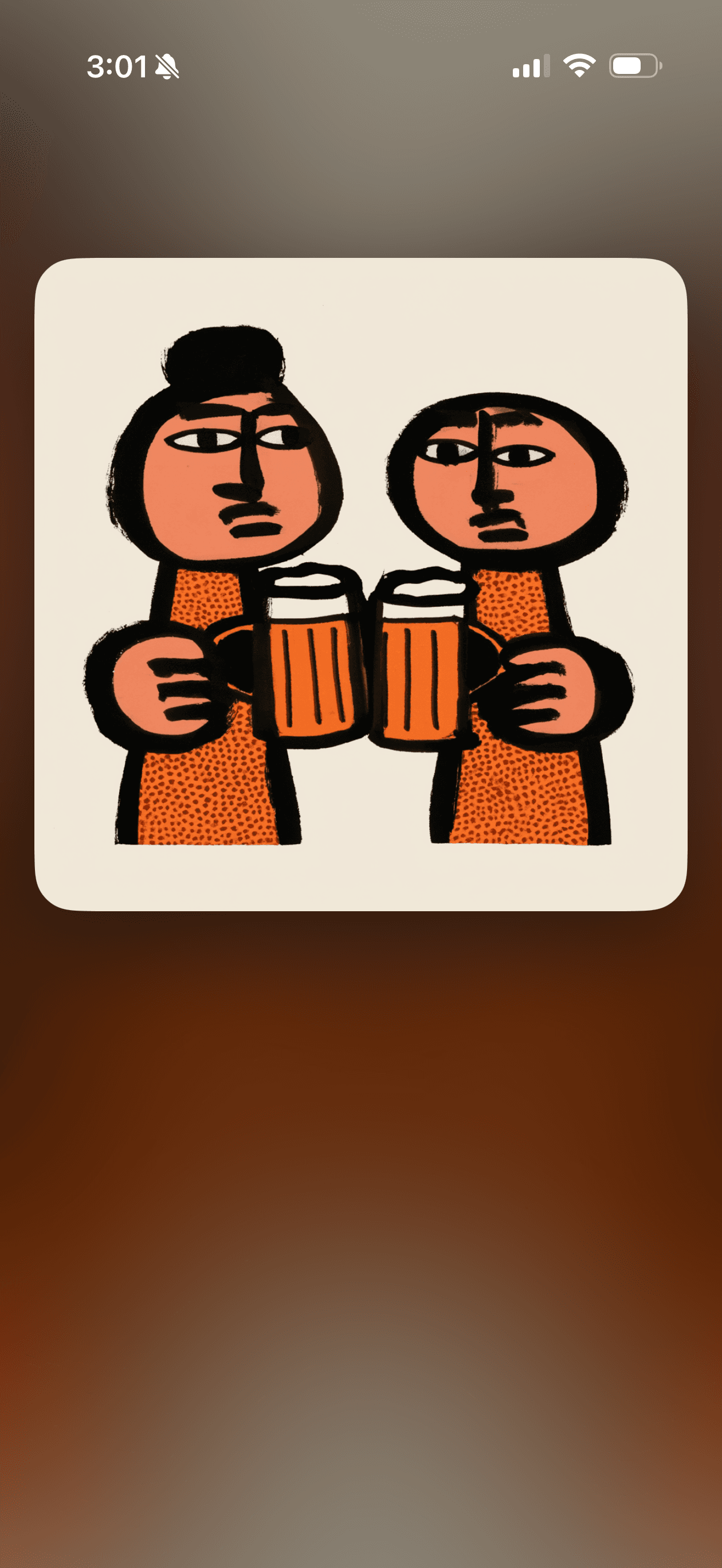
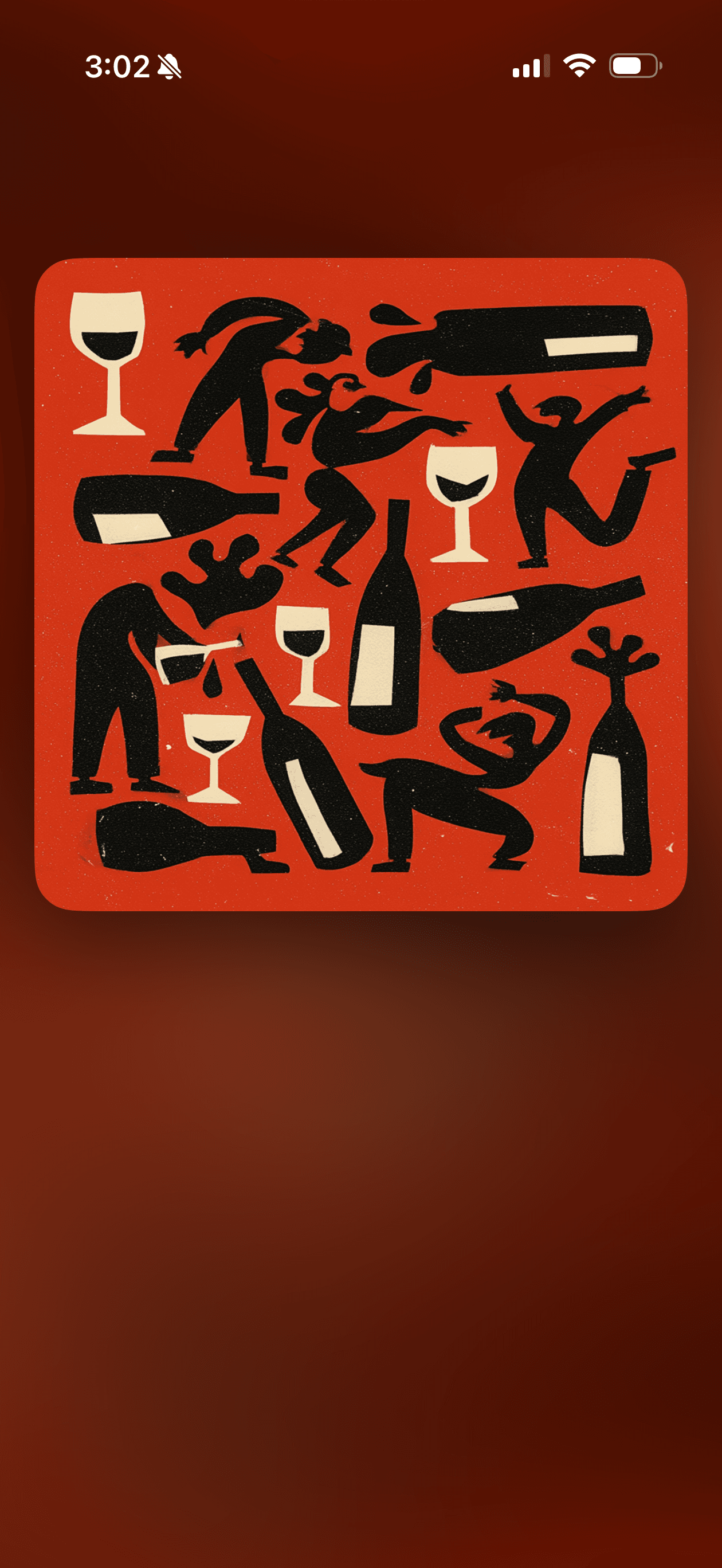
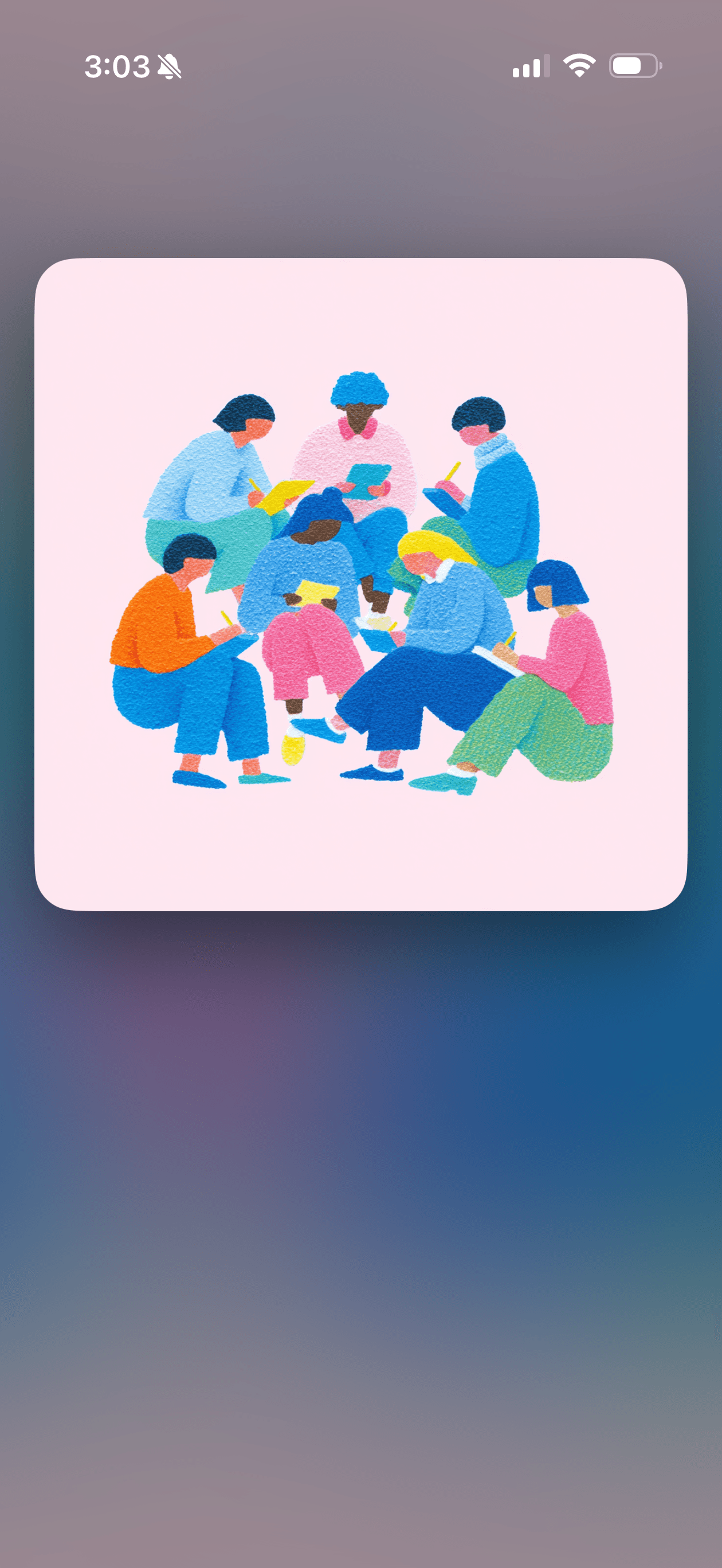
"Oh, that's prettier than I expected."
It might feel a little
unfamiliar at first.
You're used to pasting details into the group chat.
It doesn't have to be a big occasion. Dinner with two friends is plenty.
But once you send one, you'll see.
Even the usual gathering
feels a little more special.
The same friends, the same plan, somehow more organized, more like a proper occasion.
Start by asking
when works.
Pick two or three candidate dates, and send them in chat.
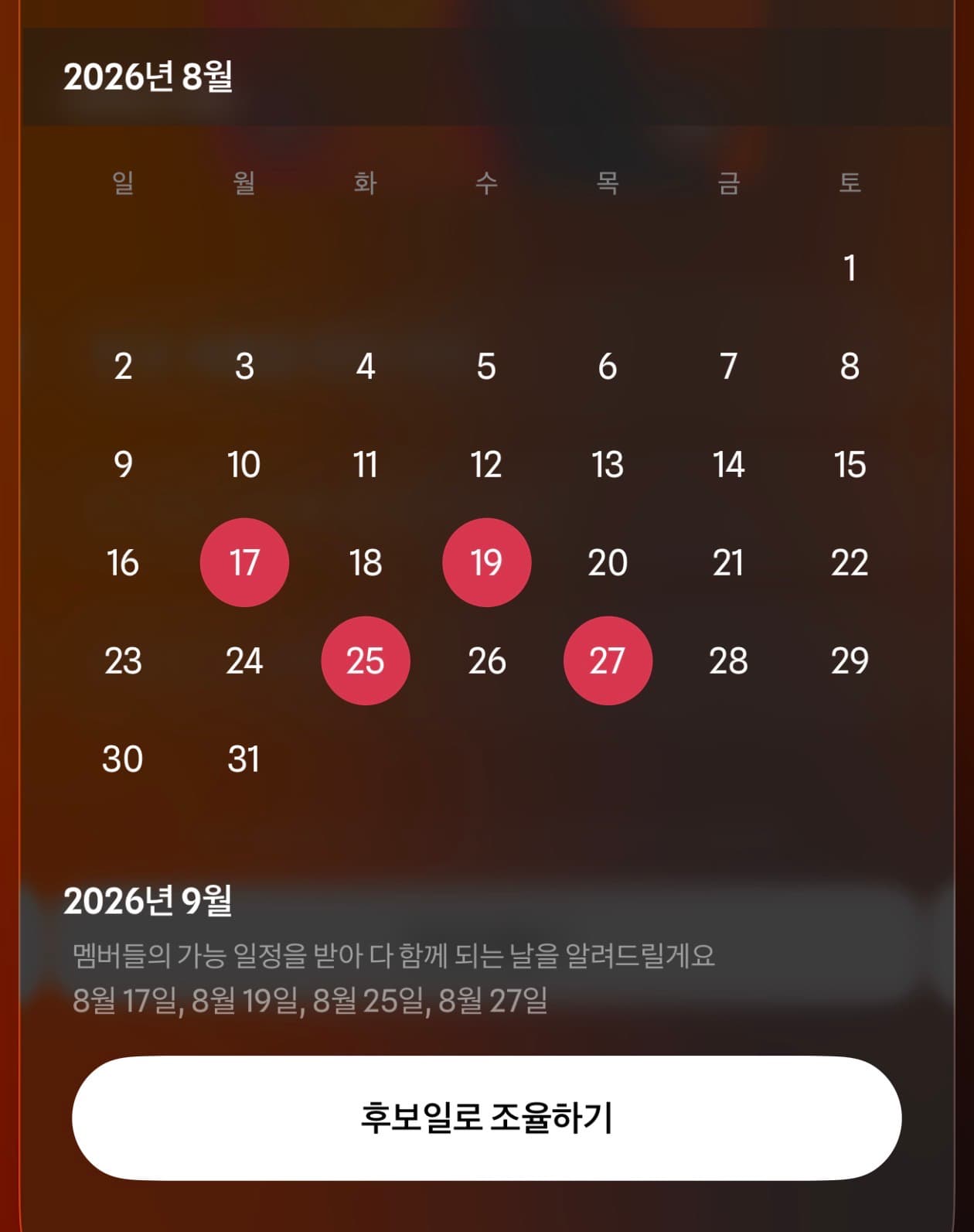
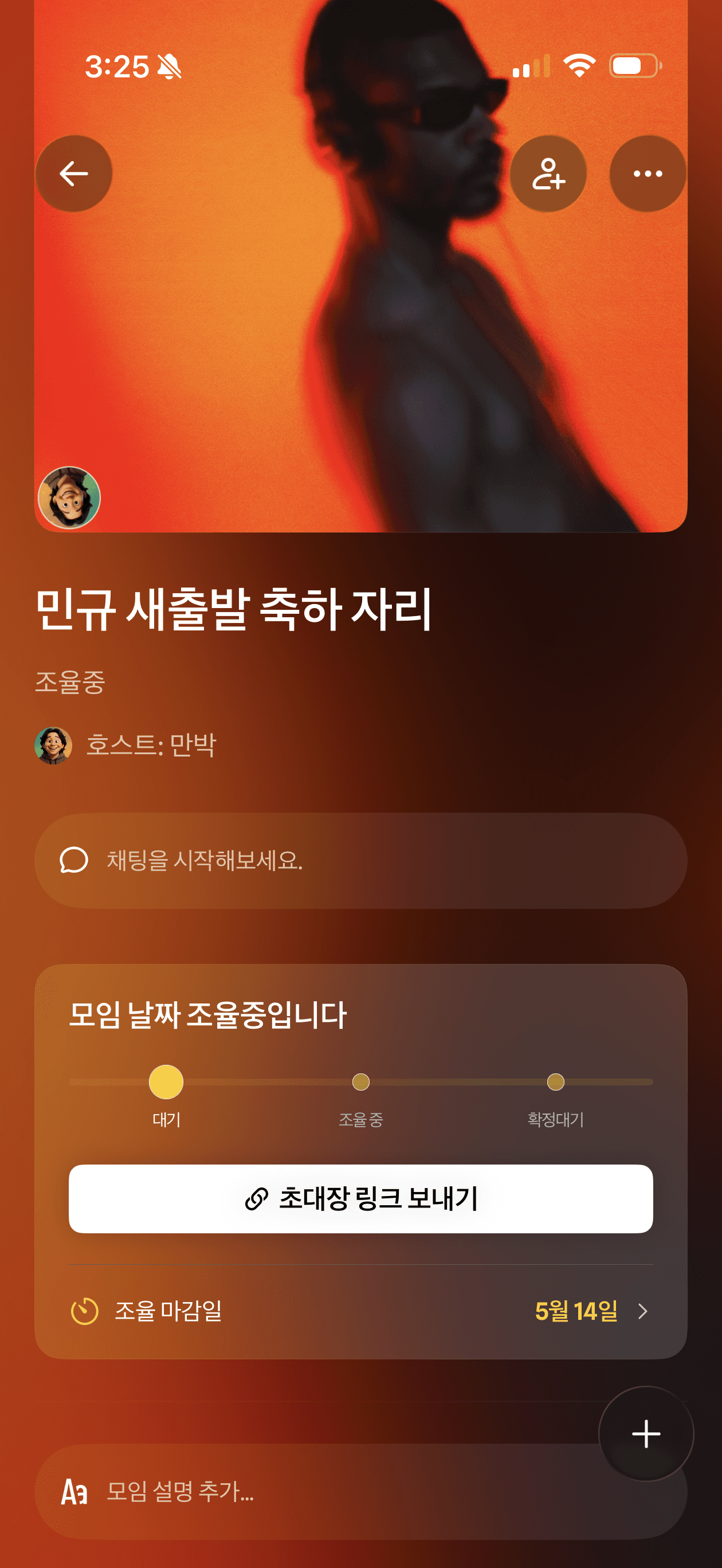
Once everyone replies with the dates that work,
the truloop AI assistant sorts it all out.
After you send it,
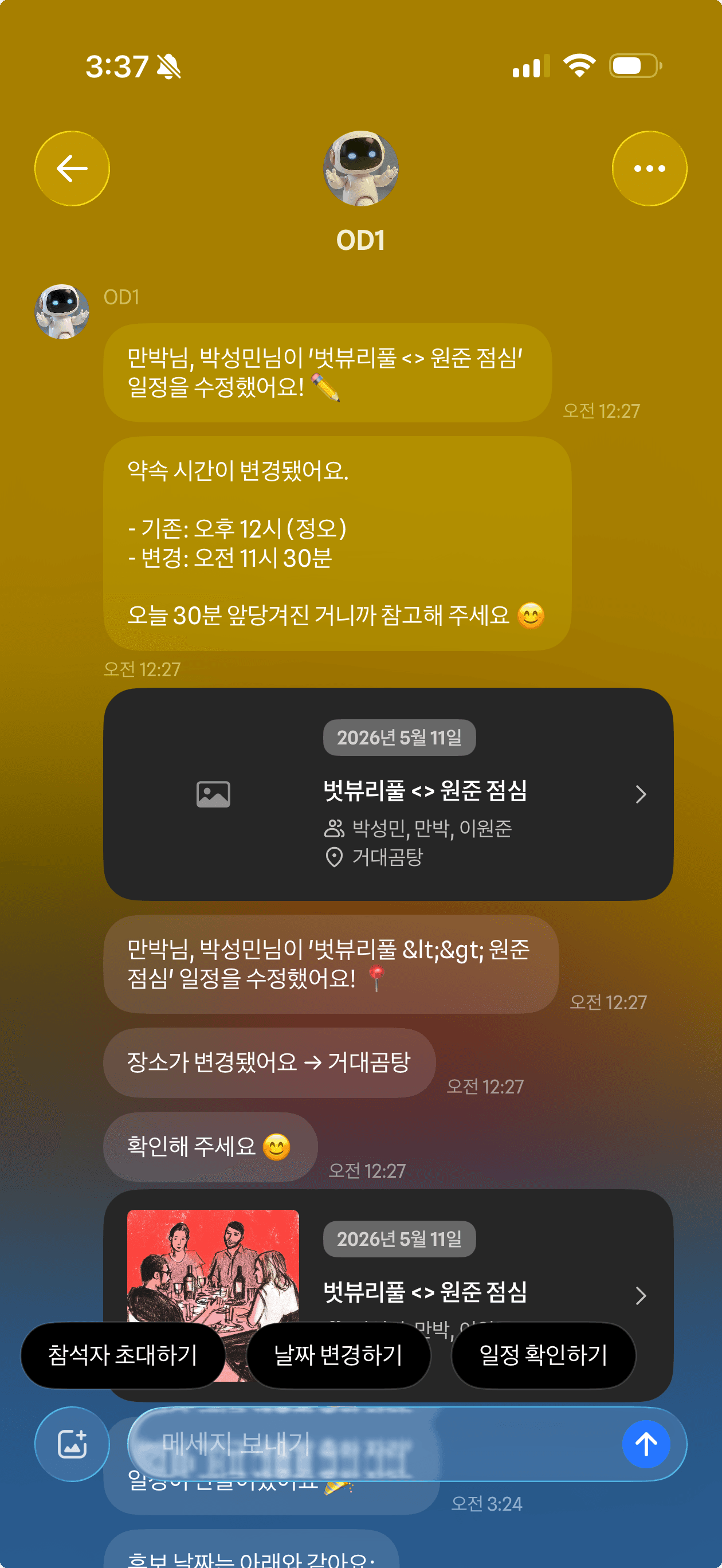
the truloop AI assistant takes care of the rest.
- If the time or place changes, everyone gets a notification automatically.
- A gentle reminder the night before, even a nudge to get some sleep.
- Three hours ahead, it shares departure times and arrival ETAs together.
The plan you already have,
try sending it like this.
One minute is all it takes. When you take care of plans, you're taking care of each other.